
A business server usually stays in service for five years or more. Buy too small and you will be upgrading or replacing it within a year. Buy too big and you have paid for capacity you never use, plus extra software licences. The right choice starts with your workloads, not with a model number.
This guide walks through the decisions in order, so you can brief a supplier clearly or check a quote with confidence.
Step 1: list what the server will run
Write down every job the server will do. Common business workloads include:
- Active Directory, DNS and DHCP (user logins and network services)
- File server for shared folders
- Application server for Tally, ERP, CRM or line-of-business software
- Remote Desktop Services for users working on the server
- Database server, for example Microsoft SQL Server
- Virtualisation host running several virtual machines
- Backup repository or CCTV storage
For each workload, note the number of users, how much data it holds today, how fast that data grows, and what happens to the business if it stops. That last point decides how much redundancy you need.
Step 2: decide whether you need a server, a NAS or both
If your main need is shared files and backups, a NAS may be enough and costs less to run. If you need Active Directory, business applications, databases or virtual machines, you need a server. Many offices use both: a server for applications and a NAS for backups. Our guide to dedicated server vs NAS explains the difference.
Step 3: physical or virtual?
Instead of buying one server per job, most businesses now buy one or two well-specified servers and run each workload in its own virtual machine. This makes better use of the hardware, simplifies backups and makes moving to new hardware easier later. Read VMware virtualization and its business benefits for the options, including Hyper-V and Proxmox.
Step 4: tower or rack?
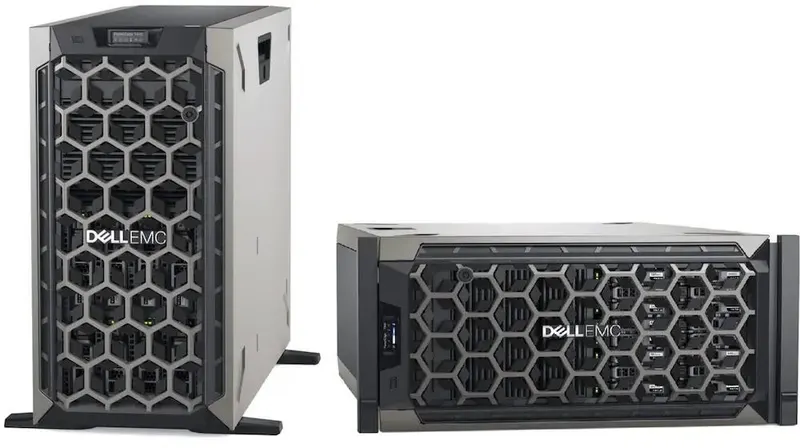
| Factor | Tower server | Rack server |
|---|---|---|
| Where it lives | Office floor or a cabinet; no rack needed | Network rack or data centre |
| Noise | Usually quieter | Louder; best in a separate room |
| Growth | Good for one or two servers | Best when you have several servers, switches and a UPS in one rack |
| Examples | Dell PowerEdge T440, T640 | Dell PowerEdge R640, R740, R750, R760 |
A small office with one server and no server room often suits a tower. A business with several devices and a proper network rack is better served by rack servers.
Step 5: processors
Processor choice is a balance between core count and clock speed:
- More cores help when running many virtual machines, many Remote Desktop users or databases with many simultaneous queries.
- Higher clock speed helps single-threaded applications, which includes some accounting and older business software.
- One or two sockets: a single processor is often enough for small businesses and can reduce cost. Two processors double the memory slots and capacity.
Licensing tip: Windows Server is licensed per physical core, with minimums of 8 cores per processor and 16 per server. Buying far more cores than you need increases licence costs. See Windows Server licensing explained.
Step 6: memory (RAM)
Memory is often the first thing a server runs out of, especially with virtualisation and Remote Desktop.
- Add up the memory for each virtual machine or service, plus the host operating system.
- Allow headroom for growth, typically 30 to 50 percent.
- Use fewer, larger modules where possible so slots remain free for later upgrades, while following the server's memory population rules.
Our PowerEdge RAM guide explains RDIMM, LRDIMM and slot population.
Step 7: storage and RAID
Storage design affects both speed and safety.
- Operating system: two small SSDs in RAID 1, or a dedicated boot device such as Dell's BOSS card on supported models.
- Applications, databases and VMs: SSDs in RAID 10 or RAID 5/6 depending on write load.
- Bulk files and backups: high-capacity hard disks in RAID 6.
- RAID controller: choose a hardware RAID controller with cache for business workloads.
See SSD vs HDD for business and RAID levels explained.
Step 8: redundancy and uptime
How long can the business run without the server? The answer decides what to include:
- Redundant power supplies, each connected to a UPS (ideally separate circuits)
- Hot-swap drives in RAID, so a failed drive can be replaced without shutting down
- Two network ports, teamed to two switches for critical servers
- A spare drive on the shelf for quick replacement
- A second server or replication for workloads that cannot be down for long
Step 9: remote management
Enterprise servers include a management controller, such as Dell's iDRAC. It lets you power the server on or off, view the console, mount installation media and receive hardware alerts remotely, even when the operating system is not running. Make sure the licence level includes remote console access, and set up email alerts on day one.
Step 10: operating system and licences
- Windows Server Standard or Datacenter, licensed per core, plus CALs for users or devices and RDS CALs for Remote Desktop users.
- Linux distributions for web, database or specialised workloads.
- Hypervisor licensing if you use VMware.
- Application licences such as SQL Server, Tally or ERP software.
Check that the server model is supported by the operating system version you plan to run, using the manufacturer's support site (for Dell, Dell Support) and Microsoft's Windows Server editions comparison.
Step 11: new or refurbished?
New servers offer the latest platform and manufacturer warranty. Refurbished servers from the previous generations can save a lot of money for moderate workloads. Read refurbished vs new Dell server and our Dell PowerEdge buying guide.
Example configurations by business size
These are starting points to discuss with your supplier, not fixed specifications.
| Business | Typical needs | Starting point |
|---|---|---|
| 5 to 15 users | Active Directory, file sharing, Tally | One tower or 1U server, single processor, SSDs in RAID 1, plus a NAS for backup |
| 15 to 50 users | AD, files, RDS for applications, a few VMs | One 2U server, SSDs in RAID 10 for VMs, high-capacity drives for files, NAS backup with off-site copy |
| 50+ users or critical workloads | Many VMs, databases, high availability | Two or more servers with shared or replicated storage, redundant networking and a managed backup system |
Step 12: plan for support
A server is only as reliable as its maintenance: firmware and OS updates, backup checks, drive monitoring and someone who responds when an alert fires. Factor support into the decision, whether in-house or through an IT AMC.
Checklist to send to your supplier
- Workloads and number of users
- Current data size and yearly growth
- Tower or rack, and where it will be installed
- Uptime requirement (hours of downtime you can accept)
- Operating system and licences needed
- Budget and preference for new or refurbished
Placement, power and cooling
- Location: a locked, ventilated room or cabinet, away from water pipes and direct sunlight.
- Power: an online or line-interactive UPS sized for the server and network equipment, with enough runtime for a clean shutdown.
- Cooling: servers need steady airflow; an office corner with no ventilation shortens hardware life.
- Network: connect the server to a switch on the same UPS, with the iDRAC on a management network.
Warranty and support coverage
For new servers, review the manufacturer warranty level and response terms, and whether onsite parts replacement is included. For refurbished servers, get the seller's warranty terms in writing. Either way, decide who will diagnose problems, order parts and restore service, and how quickly. A server with a strong warranty but nobody to act on its alerts is still a risk.
Products and services for this
- Dell PowerEdge servers, new and refurbished
- Server RAM, SSDs and SAS drives
- Windows Server licences, CALs and RDS CALs
- Racks and networking
- Server configuration and support
Quick answers
How do I choose a server for my business? +
Start with the workloads it will run and the number of users, then decide on tower or rack, processors, memory, storage and RAID, redundancy, remote management and licences.
Should a small business buy a tower or rack server? +
A tower suits a small office with one server and no rack. A rack server suits businesses with several devices in a network rack or server room.
How much RAM does a business server need? +
Add up the memory for each virtual machine or service and the host operating system, then add 30 to 50 percent headroom for growth.
Do I need two processors in my server? +
Not always. A single processor is often enough for small businesses. Two processors give more cores and memory capacity for larger virtualisation or database workloads.
Does the number of CPU cores affect licensing? +
Yes. Windows Server is licensed per physical core, with minimums per processor and per server, so extra cores increase licence costs.
Is a refurbished server a good idea? +
For moderate workloads, a refurbished server from a recent generation can be excellent value. Get the condition and warranty terms in writing.
Do I still need a NAS if I buy a server? +
A separate NAS is a good place for backups of the server, so a failure of the server does not also take out your backups.
Tell us your workloads and users, and we will suggest a server configuration and quote it, new or refurbished.