
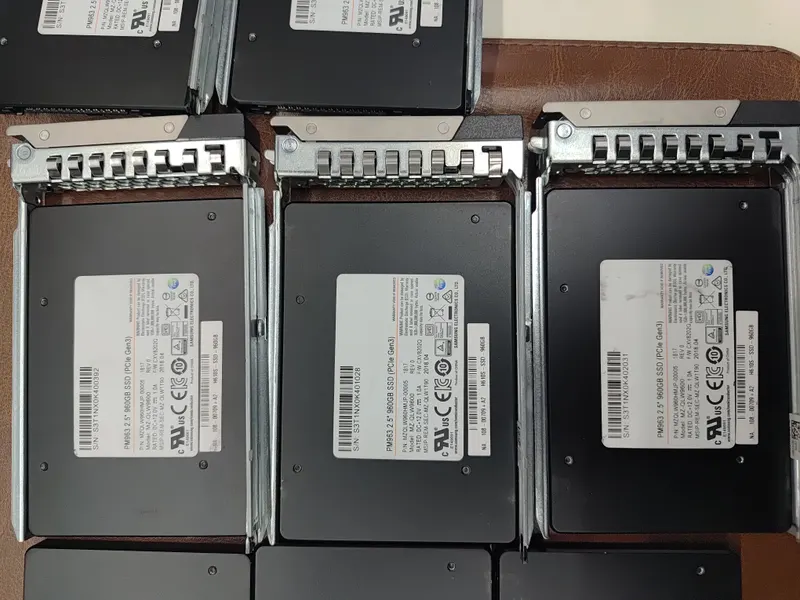
Storage is one of the biggest factors in how fast a server, NAS or PC feels. It is also one of the easiest places to overspend or underspend. Solid-state drives (SSDs) and hard disk drives (HDDs) both have a place in business IT. The trick is knowing which to use for each job.
How SSDs and HDDs differ
An HDD stores data on spinning magnetic platters read by a moving head. An SSD stores data in flash memory with no moving parts. That single difference drives almost everything else.
| Factor | SSD | HDD |
|---|---|---|
| Random performance (many small reads and writes) | Far faster | Slow; limited by the moving head |
| Sequential speed (large files) | Fast, especially NVMe | Reasonable for large files |
| Cost per terabyte | Higher | Lower |
| Largest capacities | Large, at higher cost | Very high capacities at low cost per TB |
| Wear | Flash wears with writes; rated by endurance | Mechanical wear over time |
| Shock and vibration | Very tolerant | Sensitive |
| Power and heat | Generally lower | Higher, especially with many drives |
| Noise | Silent | Audible |
For business workloads, the difference in random performance matters most. Operating systems, databases, virtual machines and accounting software constantly perform small reads and writes, which is exactly where SSDs excel.
Interfaces: SATA, SAS and NVMe
Both SSDs and HDDs connect through an interface, and the interface sets limits on speed and features.
| Interface | Used in | Key points |
|---|---|---|
| SATA (6 Gb/s) | PCs, NAS, entry servers | Low cost, widely compatible; single-port |
| SAS (12 Gb/s, newer 24G) | Servers, enterprise storage | Dual-port options, enterprise features, works with server RAID controllers |
| NVMe (PCIe) | Modern servers, workstations, NAS cache slots | Much higher throughput and lower latency; connects over PCIe |
Server RAID controllers and backplanes support specific interfaces and drive types, so always check compatibility with the exact server model before buying drives. The NVM Express organisation publishes the NVMe standard if you want to read more.
Enterprise vs consumer drives
A consumer SSD in a business server is a common and risky shortcut. Enterprise drives differ in ways that matter:
- Endurance: enterprise SSDs are rated for far more writes.
- Power-loss protection: capacitors let the drive finish writing data if power fails.
- Consistent performance under sustained load, not just short bursts.
- Firmware and compatibility validated with server RAID controllers.
- Warranty terms designed for 24/7 use.
Understanding SSD endurance (DWPD and TBW)
SSD endurance is quoted in two ways:
- DWPD (drive writes per day): how many times the full capacity can be written each day over the warranty period.
- TBW (terabytes written): total data that can be written over the drive's life.
Enterprise SSDs are commonly grouped as read-intensive (lower DWPD, for workloads that mostly read), mixed-use (moderate writes, such as databases and VMs), and write-intensive (heavy logging, caching). Choose by your write load, not just capacity.
Hard disk types for business
- 7,200 rpm NL-SAS or enterprise SATA: high capacity for file servers, NAS and backups.
- 10,000 / 15,000 rpm SAS: older performance drives, now largely replaced by SSDs.
- NAS-rated drives: designed for multi-bay NAS units running 24/7.
- Surveillance drives: designed for continuous CCTV writing.
Avoid SMR drives in RAID. Some low-cost hard disks use shingled magnetic recording (SMR), which can perform poorly and slow down rebuilds in RAID arrays. For NAS and servers, choose CMR drives from the vendor's compatibility list.
Reliability: what the data says
Both technologies fail eventually, and the answer is always redundancy and backup rather than trusting any one drive. Backblaze publishes large-scale drive reliability data from its data centres, which is a useful reference for failure rates by model. Practical points:
- SSDs have no moving parts, so they handle shock and vibration well.
- SSDs report wear through SMART data, so you can see when one is nearing its endurance limit.
- Data recovery from a failed SSD is often harder than from an HDD, so backups are essential.
- Monitor drive health through your RAID controller, iDRAC or NAS alerts.
What to use where
| Use | Recommended storage | Why |
|---|---|---|
| Server operating system | 2 x SSD in RAID 1 (or a boot module where supported) | Fast boots and updates, high reliability |
| Virtual machines and databases | Mixed-use enterprise SSDs (SAS or NVMe) in RAID 10 | Random performance and endurance |
| Tally, ERP and accounting data | Enterprise SSDs in RAID 1 or RAID 10 | Noticeably faster with large data and many users |
| File server / shared folders | HDDs in RAID 6, optionally with SSD cache | Low cost per TB for large data |
| Backups and archives | High-capacity HDDs in RAID 6 | Capacity matters more than speed |
| CCTV recording | Surveillance-rated HDDs | Designed for continuous writes |
| Office PCs and laptops | NVMe or SATA SSD | The single biggest improvement to everyday speed |
Hybrid designs: the best of both
Many business systems combine SSDs and HDDs:
- Tiered servers: SSDs for VMs and databases, HDDs for bulk files.
- NAS SSD cache: M.2 or 2.5-inch SSDs cache frequently used data in front of HDDs.
- Hybrid backup: fast SSD storage for recent backups, HDDs for long retention.
Real-world examples
Upgrading an older server
A file and Tally server with hard disks takes minutes to open large company files. Replacing the drives for the OS and Tally data with enterprise SSDs in RAID 1, while keeping HDDs for archives, makes everyday work dramatically faster without replacing the server.
A NAS for 20 users
A 4-bay NAS with NAS-rated HDDs in RAID 6 stores files and backups. Adding an SSD cache helps when many users open the same project folders.
A virtualisation host
Eight virtual machines run on mixed-use SAS SSDs in RAID 10 for consistent performance, with a separate NAS for backups.
Buying checklist
- Exact server or NAS model and its supported drive types
- Interface (SATA, SAS, NVMe) and form factor (2.5-inch, 3.5-inch, M.2, U.2)
- Drive carriers or caddies for hot-swap bays
- Endurance class for SSDs (read-intensive, mixed-use, write-intensive)
- CMR, NAS-rated or surveillance-rated HDDs where relevant
- Spare drive for quick replacement
- GST invoice and manufacturer warranty terms
Planning capacity and growth
Size storage for the life of the system, not just today:
- Measure current data and its growth over the last year.
- Account for RAID overhead: RAID 1 and RAID 10 give 50 percent usable space, RAID 6 loses two drives' worth.
- Leave free space: performance and snapshots both need headroom, typically 20 percent or more.
- Choose servers or NAS units with free bays so you can expand without replacing drives.
Data security: encryption and disposal
Business drives hold sensitive data, so plan for their whole life:
- Encryption: self-encrypting drives (SED), BitLocker on Windows, or volume encryption on a NAS protect data if a drive is lost or stolen.
- Secure disposal: deleting files or formatting does not reliably erase data. Use vendor secure-erase tools, cryptographic erase on encrypted drives, or physical destruction.
- Warranty returns: check whether a failed drive containing sensitive data can be retained rather than returned.
Common mistakes when buying drives
- Buying consumer SSDs for servers to save money
- Mixing drive sizes, speeds or types in the same RAID array
- Choosing SMR hard disks for a NAS or RAID
- Ignoring endurance ratings for write-heavy workloads
- Buying drives without the correct carriers for hot-swap bays
- Not keeping a spare drive for critical systems
RAID controllers and caching
In servers, the RAID controller matters as much as the drives. A controller with cache memory and battery or flash backup improves write performance and protects in-flight data during power loss. Check that the controller supports the drive type you plan to use, and keep its firmware updated.
Products and services for this
- Enterprise SSDs, SAS drives and server RAM
- Dell PowerEdge servers
- Synology NAS and QNAP NAS
- Desktops and laptops with SSDs
Related reading: RAID levels explained and CCTV storage sizing.
Quick answers
Is SSD or HDD better for a business server? +
Use SSDs for the operating system, virtual machines, databases and accounting data. Use HDDs for large file shares, backups and archives where cost per terabyte matters more.
What is the difference between SATA, SAS and NVMe? +
SATA is low cost and common in PCs and NAS. SAS adds enterprise features and is used with server RAID controllers. NVMe connects over PCIe for much higher speed and lower latency.
Can I use a consumer SSD in a server? +
It is not recommended. Enterprise SSDs offer higher endurance, power-loss protection, consistent performance and compatibility with server RAID controllers.
What does DWPD mean? +
Drive writes per day: how many times the SSD’s full capacity can be written each day over its warranty period. Higher DWPD suits write-heavy workloads.
Do SSDs last as long as hard disks? +
Enterprise SSDs rated for your write load typically last for the service life of the server. Both SSDs and HDDs can fail, so use RAID, monitoring and backups.
What hard disks should I use in a NAS? +
NAS-rated CMR drives from your NAS vendor’s compatibility list. Avoid SMR drives in RAID arrays.
Need SSDs or drives for a server or NAS? We check compatibility with your exact model before supply.