Every business runs on data: accounts, customer records, designs, contracts, email. Yet in many offices that data lives on individual PCs, a single server, or an external drive that someone copies to "when they remember". It works, until the day it does not.
A NAS backup solution gives you one central, automated and recoverable copy of your important data. This article explains why it matters, what it protects against and what a good setup looks like. For the step-by-step method, see our companion guide on NAS backup best practices and the 3-2-1 rule.
The ways businesses actually lose data
Data loss rarely comes from one dramatic event. It usually comes from ordinary problems:
- Hardware failure: hard disks and SSDs wear out. Laptops are dropped. Servers lose a RAID array.
- Human error: someone deletes a folder, overwrites a spreadsheet or saves over the only copy of a file.
- Ransomware: malware encrypts files on PCs and every network share it can reach, then demands payment.
- Theft and damage: laptops are stolen; offices suffer water leaks, fire or power surges.
- Software problems: a failed update or corrupted database, such as an accounting company file.
- Cloud account issues: a compromised Microsoft 365 or Google Workspace account can delete or encrypt synced data.
Government cyber-security agencies consistently list offline and tested backups as a core defence against ransomware. See the guidance from CISA (StopRansomware) and India's CERT-In.
Why "we copy to a USB drive" is not enough
| Approach | Main problem |
|---|---|
| Manual copy to USB drive | Depends on someone remembering; often weeks out of date; drive is frequently left connected, so ransomware encrypts it too |
| Files only on each PC | No central copy; a failed or stolen laptop means lost work |
| RAID on the server | Protects against a failed drive only, not deletion, ransomware or a damaged server |
| Cloud sync (OneDrive, Google Drive, Dropbox) | Sync copies deletions and encryption too; version history helps but has limits |
| Automated NAS backup with versions and an off-site copy | Requires initial setup and periodic checks, which is exactly what makes it reliable |
What makes a NAS a strong backup platform
1. Central and automatic
A NAS runs backup jobs on a schedule for every PC, laptop and server, without anyone having to remember. Apps such as Synology's Active Backup for Business or QNAP's backup tools handle this centrally.
2. Versions, not just copies
A good backup keeps multiple versions, for example daily versions for a month and weekly versions for longer. If a file was damaged last Tuesday, you can restore the version from Monday.
3. Snapshots for fast recovery
On supported file systems, snapshots record the state of a shared folder at points in time. If ransomware encrypts a share, you can roll the whole folder back to before the attack in minutes. Snapshots can be made immutable on supported models, so they cannot be deleted for a set period.
4. Bare-metal recovery
Whole-machine backups let you restore a failed PC or server, including the operating system and applications, to new hardware or a virtual machine.
5. Off-site and cloud copies
The NAS can send an encrypted copy to a second NAS at another location or to cloud storage. This protects against fire, theft or a disaster that affects the whole office.
6. Predictable cost
Once the NAS and drives are purchased, there is no per-gigabyte charge for local backups. For many offices, local backup on a NAS plus a smaller off-site copy is very cost-effective.
What should a business back up?
- Servers: file servers, domain controllers, application and database servers (whole-machine backup).
- Accounting data: Tally, ERP and other business application data, with daily or more frequent backups.
- PCs and laptops: at least the Documents, Desktop and work folders; full images for key staff.
- Virtual machines: VMware or Hyper-V VMs, ideally with application-aware backups.
- Microsoft 365 or Google Workspace: mailboxes, OneDrive or Drive, and shared sites, on supported software.
- Network devices: firewall and switch configuration files.
Real-world scenarios
Scenario 1: ransomware on a shared drive
A user opens an infected attachment. Within an hour, files on the user's PC and the shared department folder are encrypted. With hourly snapshots on the NAS, IT isolates the PC, rolls the share back to the snapshot taken before the infection and restores the PC from its last backup. Work resumes the same day, and no ransom is paid.
Scenario 2: a failed accounting server
The server holding the accounts data fails on the last day of the month. Because the NAS holds a nightly whole-machine backup, the server is restored to replacement hardware or to a virtual machine, and the team loses at most one day's entries.
Scenario 3: an accidental deletion discovered weeks later
A project folder was deleted a month ago and nobody noticed. Thanks to versioned backups with monthly retention, the folder is restored in minutes.
The minimum good NAS backup setup
- A NAS with at least 4 bays in RAID 6 or SHR-2, sized for your data and versions (see RAID levels explained).
- Automatic daily backups of servers, key PCs and business data.
- Snapshots of shared folders, with sensible retention.
- An off-site copy to a second NAS or cloud, encrypted.
- Alerts by email for failed jobs and drive problems.
- Locked-down access: separate admin accounts, two-factor authentication, no direct internet exposure.
- A restore test every quarter, with a short written record.
NAS backup vs cloud-only backup
| Factor | NAS (local) | Cloud only |
|---|---|---|
| Restore speed | Fast, over the office network | Limited by internet speed; large restores can take days |
| Ongoing cost | Mostly up-front hardware | Monthly fees that grow with data |
| Protection from office disaster | Needs an off-site copy | Built in |
| Data control | Data stays on your premises | Data held by the provider |
The best approach for most businesses is both: a NAS for fast local recovery, with an encrypted off-site or cloud copy for disasters.
Choosing the right NAS for backup
- Synology is a popular choice for backup because Active Backup for Business is included on supported models and is straightforward to manage.
- QNAP offers flexible hardware and its own backup and snapshot tools.
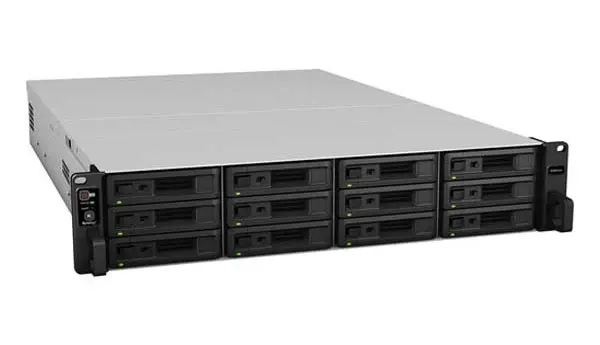
- For larger environments, rack-mount models such as the Synology RS3621xs+ provide more drive bays and expansion.
See Synology vs QNAP for business for a detailed comparison.
Common mistakes to avoid
- Treating RAID or sync as backup
- Keeping the only backup in the same room as the server
- Using the same admin password on the NAS as on PCs
- Never testing a restore
- Ignoring "backup failed" emails, or not receiving them at all
A sample retention policy
Retention decides how far back you can go. A simple, effective starting point for many offices:
| Data | Frequency | Keep |
|---|---|---|
| Shared folder snapshots | Every 1 to 4 hours during work hours | 7 to 14 days |
| Server and VM backups | Daily | 30 daily versions, plus monthly versions for 6 to 12 months |
| Accounting and database data | Daily, or more often during busy periods | Daily for 30 days, monthly for a year or as required |
| PC and laptop backups | Daily | 14 to 30 versions |
| Off-site copy | Daily or weekly | At least 30 days |
Adjust retention to your legal, tax and contractual obligations, and size the NAS so the versions fit with room to grow.
Who should own backup in your business?
Backups fail quietly when nobody owns them. Assign one person or your IT support provider to check backup reports, act on alerts and run restore tests, and record each test. If you use an IT AMC, include backup checks in the scope.
Products and services for this
Quick answers
Why does a business need a NAS for backup? +
A NAS automates backups of PCs, servers and business data to one central place, keeps multiple versions and snapshots, and can send an off-site copy, so data can be restored quickly after failures, mistakes or ransomware.
Is RAID enough to protect business data? +
No. RAID only protects against a failed drive. It does not protect against deletion, ransomware, a damaged NAS or a disaster in the office.
Can a NAS protect against ransomware? +
It helps a lot when set up correctly: versioned backups, immutable snapshots, restricted admin access and an off-site copy let you restore clean data without paying a ransom.
How often should business data be backed up? +
At least daily for most data, and more often for accounting or databases that change throughout the day. Snapshots can run hourly for shared folders.
Do I still need cloud backup if I have a NAS? +
An off-site copy is strongly recommended. It can be cloud storage or a second NAS at another location.
How do I know my backups work? +
Enable email alerts for failed jobs and test a restore at least every quarter.
Want backups you can rely on? We supply Synology and QNAP NAS and set up automated, tested backups with off-site copies.