
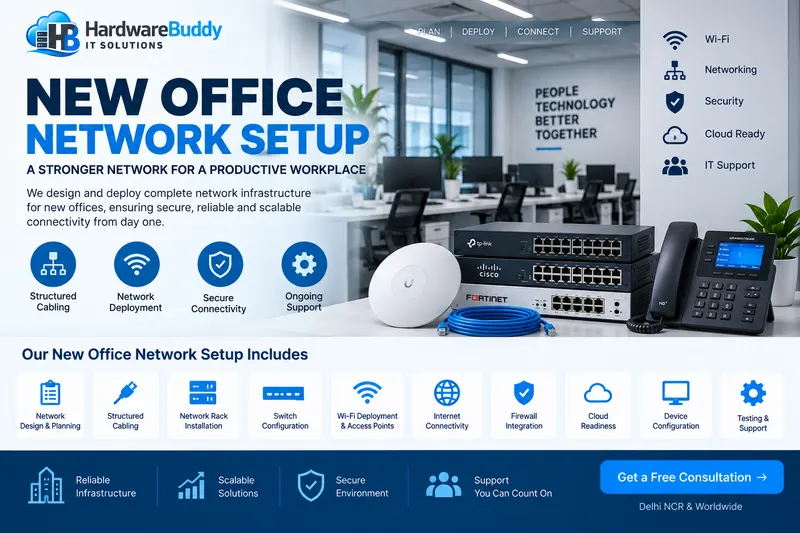
Slow internet, Wi-Fi that drops in meeting rooms, a shared drive that randomly disconnects, a printer nobody can find: most office network problems come from a network that grew one device at a time without a plan. This guide covers how to design and set up an office network properly, from the internet line to the last access point, with security built in rather than bolted on.
The building blocks
| Component | Role |
|---|---|
| Internet connection(s) | Business broadband or leased line; ideally two providers for failover |
| Firewall | Protects the network edge, controls traffic, provides VPN and web filtering |
| Core / access switches | Connect PCs, servers, printers and access points |
| PoE switches | Power access points, IP phones and CCTV cameras over the network cable |
| Wireless access points | Business Wi-Fi with central management |
| Structured cabling and rack | Cat6/Cat6A cabling, patch panels and a network rack |
| UPS | Keeps the network running through power cuts and protects equipment |
Step 1: internet connectivity
- Choose a business plan with a service level suited to how much you depend on the internet.
- Get a static IP if you need site-to-site VPN, remote access or hosted services.
- Add a second connection from a different provider, ideally over a different medium, for automatic failover.
Step 2: the firewall
An ISP router is designed to connect you to the internet, not to protect a business. A next-generation firewall (NGFW) adds:
- Intrusion prevention (IPS), antivirus and malware scanning
- Web filtering and application control
- Site-to-site and remote-access VPN
- Load balancing and failover across two internet lines
- Logging and reporting
Size the firewall by its threat protection throughput (with security features enabled), not the headline firewall throughput. Budget for the yearly security subscription; see what happens when a firewall licence expires. For brand comparisons, read FortiGate vs Sophos vs SonicWall. Vendor information: Fortinet, SonicWall and pfSense.
For businesses that cannot tolerate firewall downtime, two firewalls in a high-availability pair remove the single point of failure.
Step 3: switches
Unmanaged, smart and managed
| Type | Features | Fits |
|---|---|---|
| Unmanaged | Plug and play, no configuration | Very small offices, a desk extension |
| Smart (web-managed) | VLANs, basic QoS, monitoring | Small offices that want guest and CCTV separation |
| Fully managed (Layer 2/3) | VLANs, link aggregation, spanning tree, ACLs, routing between VLANs (L3), SNMP | Growing offices, multiple floors, servers and storage |
PoE planning
Power over Ethernet standards include 802.3af (PoE, up to 15.4 W per port), 802.3at (PoE+, up to 30 W) and 802.3bt (PoE++, higher power). Add up the power of every access point, camera and phone, and choose a switch with a total PoE budget that covers them with headroom.
Speed and uplinks
- Gigabit to every desk is the minimum.
- Use 10 Gb uplinks between switches and to servers or NAS where many users share them.
- Consider multi-gigabit ports for Wi-Fi 6/6E/7 access points.
- Leave 20 to 30 percent spare ports for growth.
Step 4: Wi-Fi
- Use business access points with central management, mounted on ceilings, instead of consumer routers.
- Plan coverage by room; walls, glass and metal reduce signal. A site survey gives the right number of access points.
- Connect access points by cable where possible; wireless mesh halves usable throughput per hop.
- Use WPA3 (or WPA2/WPA3 mixed for older devices) and enterprise authentication for staff where practical.
- Use one network name for staff across all access points so devices roam smoothly.
Step 5: segment the network with VLANs
A flat network lets any device talk to any other. If one device is compromised, everything is exposed. VLANs split the network into zones, with the firewall controlling what can cross between them.
| VLAN | Devices | Access |
|---|---|---|
| Staff | PCs, laptops | Servers, printers, internet |
| Servers | Servers, NAS | Only from staff and management as needed |
| Guest | Visitors' devices | Internet only |
| CCTV / IoT | Cameras, NVR, biometric devices, smart devices | NVR and viewing stations only |
| Voice | IP phones | Phone system, with QoS priority |
| Management | Switch, access point and iDRAC interfaces | IT administrators only |
Step 6: cabling, rack and power
- Cat6 supports gigabit to 100 m and 10 Gb over shorter runs; Cat6A supports 10 Gb to 100 m and suits new installations.
- Terminate cables on patch panels in a network rack, with cable management. We supply racks, firewalls and switches for office installations.
- Label both ends of every cable and keep a port map.
- Put the firewall, switches, servers and NAS on a UPS; use network management cards for clean shutdowns.
- Keep the rack ventilated, locked and away from water.
Step 7: security controls
Hardware alone does not make a network secure. Build in these controls:
- Change default passwords on every device; use unique admin accounts.
- Multi-factor authentication for VPN, email and admin access.
- Never expose Remote Desktop, NAS admin pages or camera systems directly to the internet. Use VPN.
- Update firmware on firewalls, switches, access points, NAS and cameras.
- Least privilege: users get only the access they need.
- Log and alert: keep firewall logs and set alerts for unusual activity.
- Back up configurations of firewalls and switches.
- Endpoint protection and patching on all PCs and servers.
Frameworks such as the NIST Cybersecurity Framework and advisories from CERT-In are useful references when setting security policies.
Step 8: remote access and branches
- Remote-access VPN with MFA for staff working from home.
- Site-to-site VPN or SD-WAN between head office and branches.
- Remote Desktop Services or VDI for applications such as Tally, published through VPN or an RD Gateway.
Step 9: monitoring and documentation
Keep a network diagram, IP plan, VLAN list, device inventory and admin credentials in a password manager. Monitor uptime and bandwidth so problems are spotted before users report them.
Example designs
15-person office
One internet line plus a backup, an entry-level NGFW, one 24-port smart PoE switch, two ceiling access points, staff/guest/CCTV VLANs, a small wall-mount rack and a UPS.
60-person office on two floors
Dual internet with failover, an NGFW (or HA pair), a managed Layer 3 core switch with 10 Gb uplinks, a PoE access switch per floor, access points by site survey, full VLAN segmentation, a floor-standing rack, UPS with network card, and centralised logging.
Common mistakes
- Using the ISP router as the only security device
- One flat network for staff, guests and cameras
- Consumer Wi-Fi routers daisy-chained across the office
- Unlabelled cables and no documentation
- Letting the firewall security subscription expire
- No UPS on network equipment
A typical rollout plan
- Survey: walk the office, count users and devices, check existing cabling and plan Wi-Fi coverage.
- Design: IP plan, VLANs, firewall rules, switch and access point placement, rack layout.
- Procure: firewall with subscription, switches, access points, rack, cabling and UPS.
- Install: cabling and rack first, then the firewall, switches and access points.
- Configure and test: VLANs, Wi-Fi, VPN, failover and security policies, tested before users move.
- Cut over: move users out of hours to avoid disruption.
- Document and hand over: diagrams, credentials in a password manager, renewal dates.
Maintenance after installation
A network needs regular care: firmware updates, firewall rule reviews, security subscription renewals, Wi-Fi checks as the office layout changes, and UPS battery tests. An IT AMC can include these checks so nothing is missed.
Choosing the Wi-Fi standard
Wi-Fi 6 (802.11ax) is a sensible baseline for new offices, handling many devices efficiently. Wi-Fi 6E and Wi-Fi 7 add the 6 GHz band and more capacity where devices support them. Match access point uplinks to their capability; newer access points benefit from multi-gigabit switch ports.
Products and services for this
- Racks, firewalls, switches and networking
- Firewall with licence and licence renewals (FortiGate, Sophos, SonicWall, pfSense)
- Office network setup across Delhi NCR
- CCTV and biometric installation, and our guide to CCTV hard disk sizing
Quick answers
What equipment do I need for an office network? +
Typically an internet connection, a business firewall, one or more switches (PoE where needed), wireless access points, structured cabling, a network rack and a UPS.
Do I need a managed switch? +
If you want VLANs to separate staff, guests and cameras, or need monitoring and link aggregation, yes. Very small offices can start with a smart switch.
Is my ISP router enough to protect the office? +
Usually not. A business firewall adds intrusion prevention, malware scanning, web filtering, VPN and failover, which ISP routers generally lack.
Why use VLANs in a small office? +
VLANs separate staff, servers, guests and cameras, so one compromised device cannot reach everything, and the firewall controls traffic between zones.
Should I use Cat6 or Cat6A cable? +
Cat6 is fine for gigabit to the desk. Cat6A supports 10 Gb over the full 100 m and is a good choice for new installations and access points.
How many Wi-Fi access points does an office need? +
It depends on area, walls and user count. A site survey gives the right number; most offices need more than one.
How do staff connect securely from home? +
Through a remote-access VPN on the firewall with multi-factor authentication. Never expose Remote Desktop directly to the internet.
We design and install office networks across Delhi NCR: firewalls, switches, Wi-Fi, VLANs, racks and cabling.